
Add funds to your reseller balance
Your Unitward panel uses a prepaid balance. When an order is placed, the panel deducts the cost from your Available Balance. The Funds Summary on the Home page shows amounts in USD. This guide shows you where to start. It does not assume that a payment method is available right now.
Before you start
- An active Unitward reseller account.
- The payment options shown in the panel can vary. If Add Funds is unavailable, write to support.
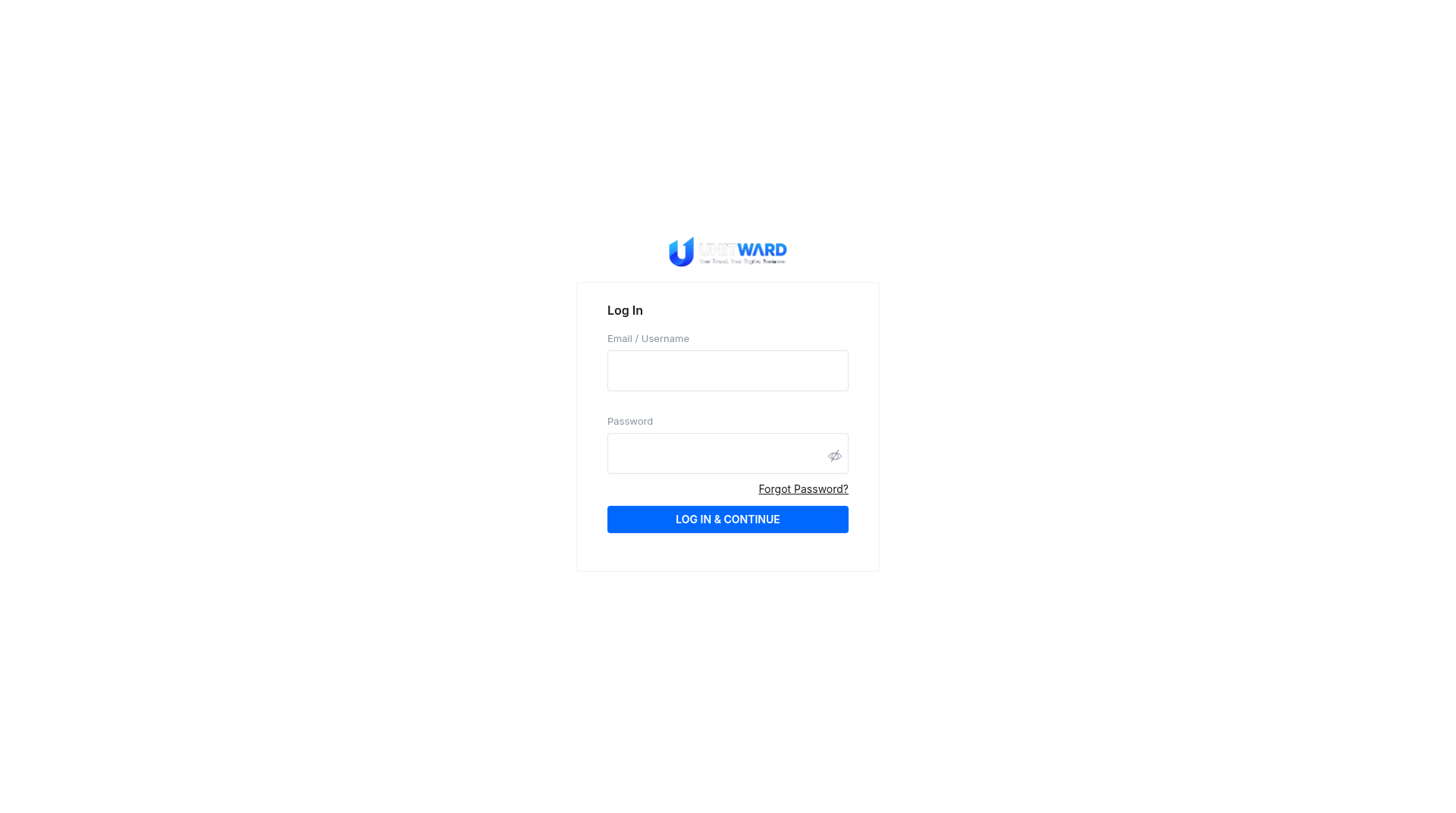
Step 1Sign in to the Unitward panel
Open your reseller panel and sign in with your reseller email and password.
Step 2Find Funds Summary and Add Funds
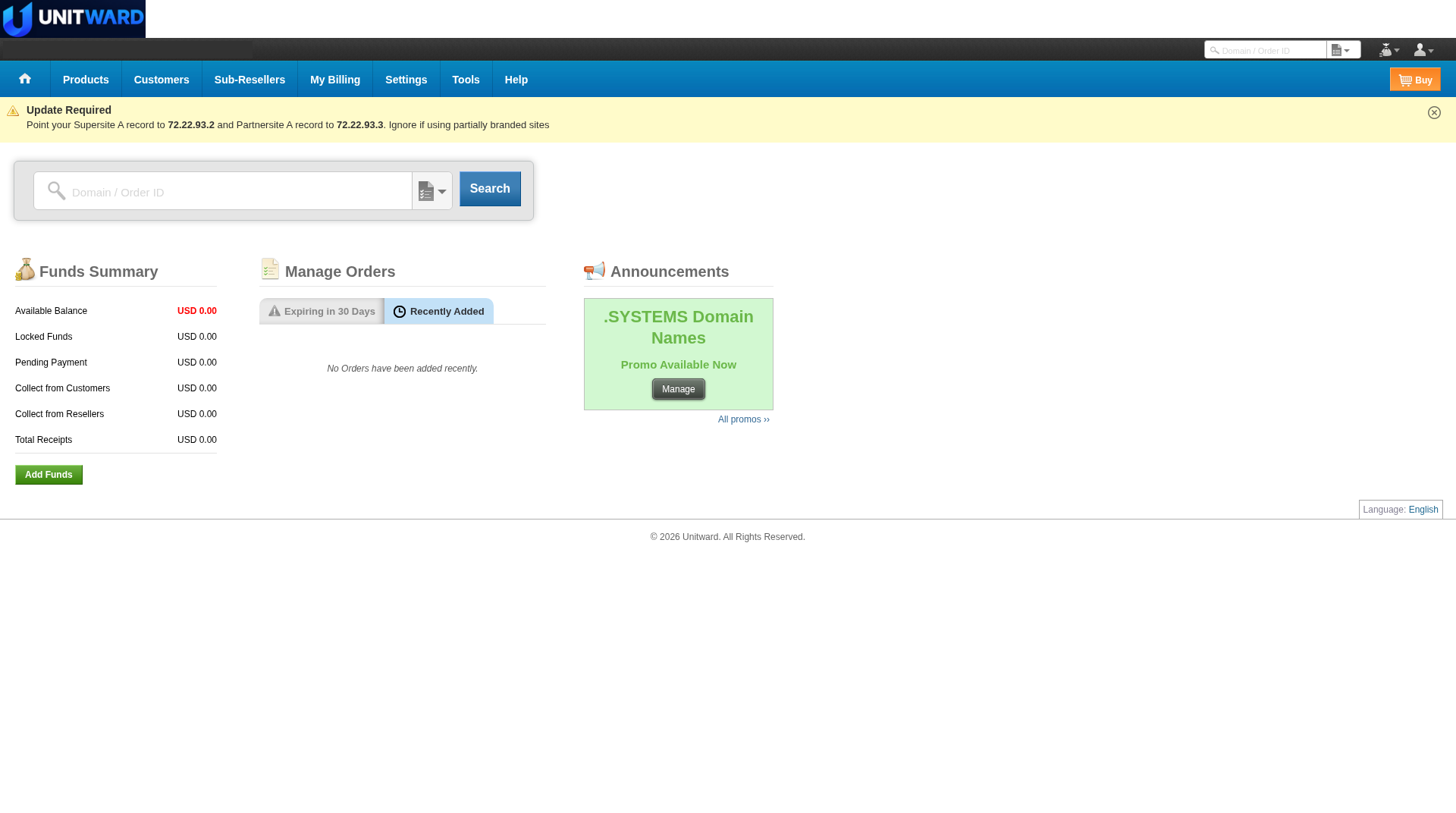
On the Home page, find the Funds Summary box. It shows Available Balance, Locked Funds, Pending Payment, Collect from Customers and Total Receipts.
Click the green Add Funds button under Funds Summary. You can also open the same page from My Billing > Add Funds.
Step 3Enter the amount when the page is available
When the Add Funds page is available, enter the amount you want to add, then follow only the payment step the page displays. Payment methods can vary, so do not assume a specific card or gateway.
If the page is unavailable or shows that payment gateways are under maintenance, do not continue. Write to support@unitward.com and wait until the page is ready.
Step 4Check your available balance
If a payment goes through, return to the Home page and check Available Balance in Funds Summary.
✅ You know where to add funds
Use the payment options the panel shows you. If the Add Funds page is unavailable or still in maintenance, write to support@unitward.com.